How to forward incoming email messages to a HelpDesk address in Microsoft 365 Outlook
This article explains how to forward incoming messages from your Microsoft 365 support mailbox to HelpDesk. For an overview of how forwarding works and how to configure your reply address, see Email forwarding.
Enable automatic external forwarding
First, enable automatic external forwarding for your support mailbox.
You need Microsoft 365 administrative permissions, such as the Security Administrator role, to configure the policy below. If you don’t have these permissions, ask your Microsoft 365 administrator to complete this section.
Open the Anti-spam policies page: https://security.microsoft.com/antispam
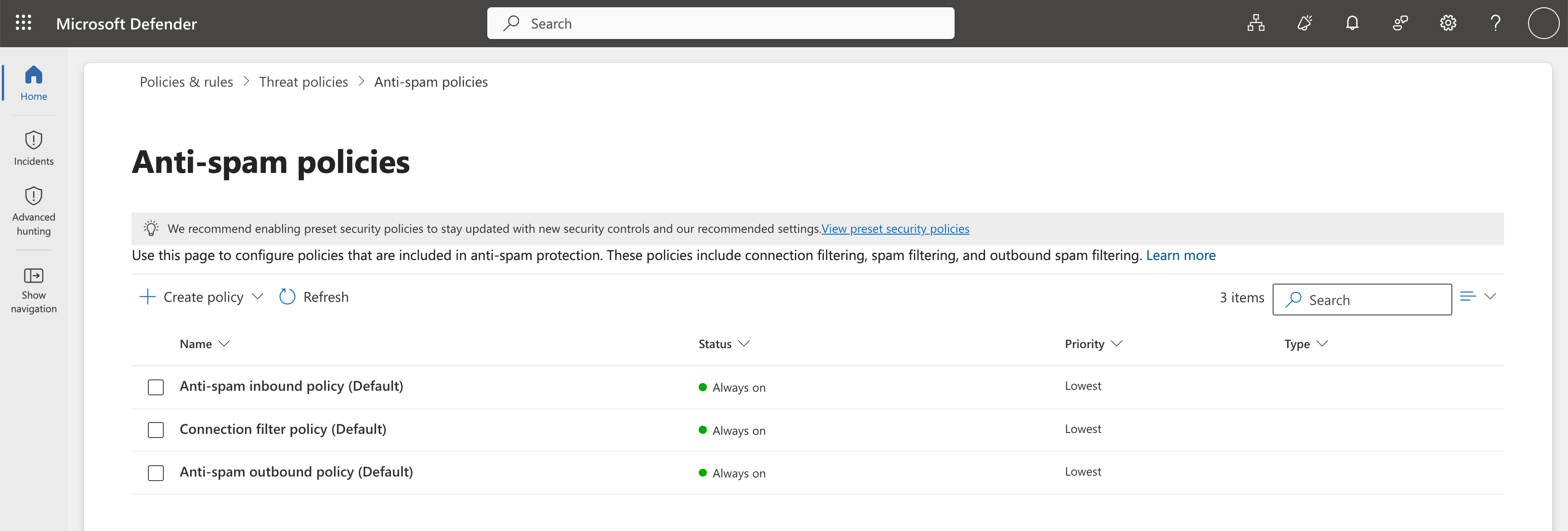
Click + Create policy -> Outbound.
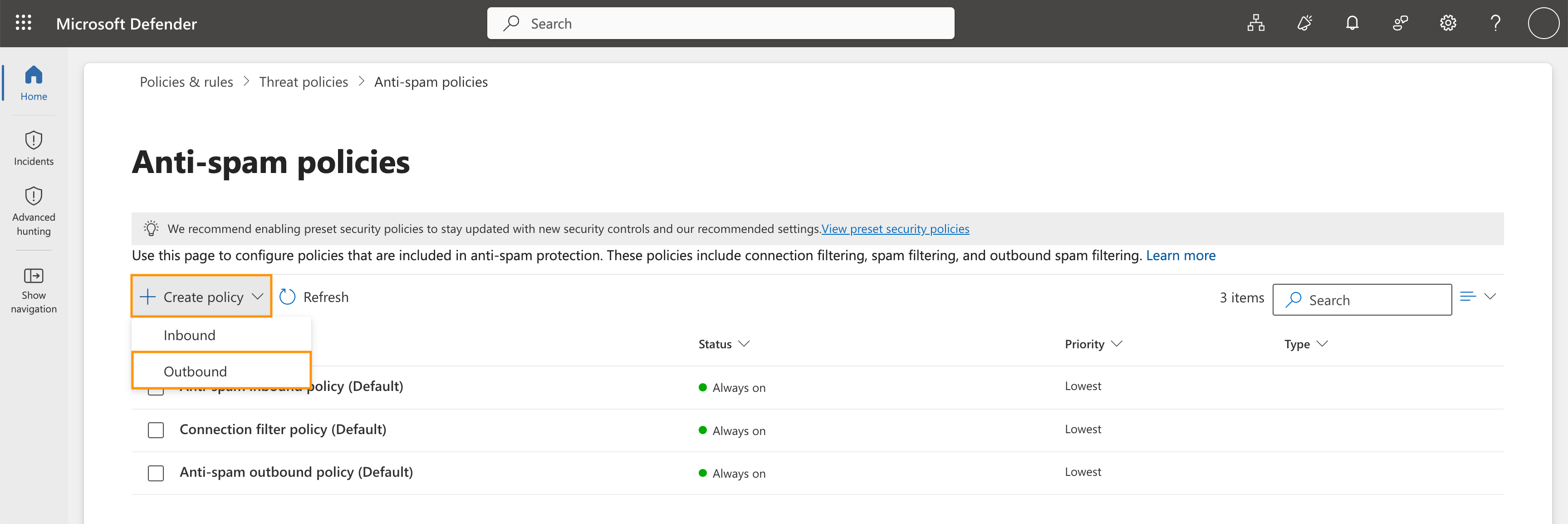
Enter a Name and an optional Description for the policy. Click Next.
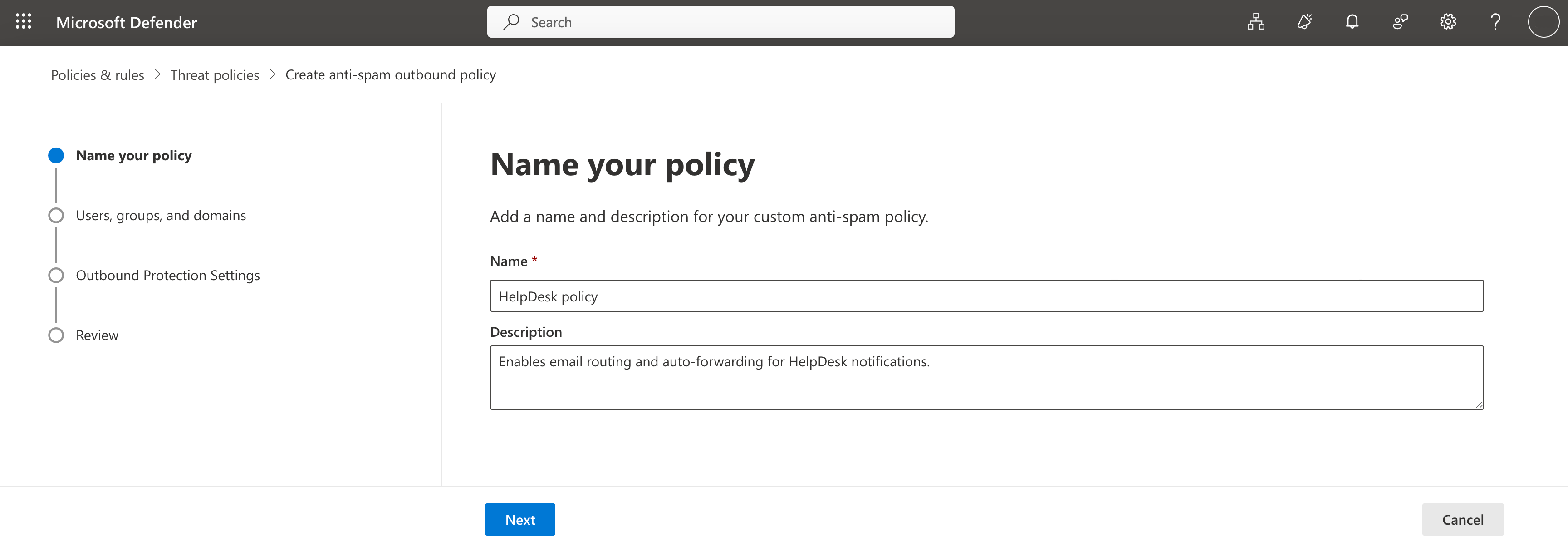
On the Users, groups, and domains page, select your support mailbox, for example support@contoso.com, under Users. Leave Groups and Domains empty to apply the policy only to this mailbox. Click Next.
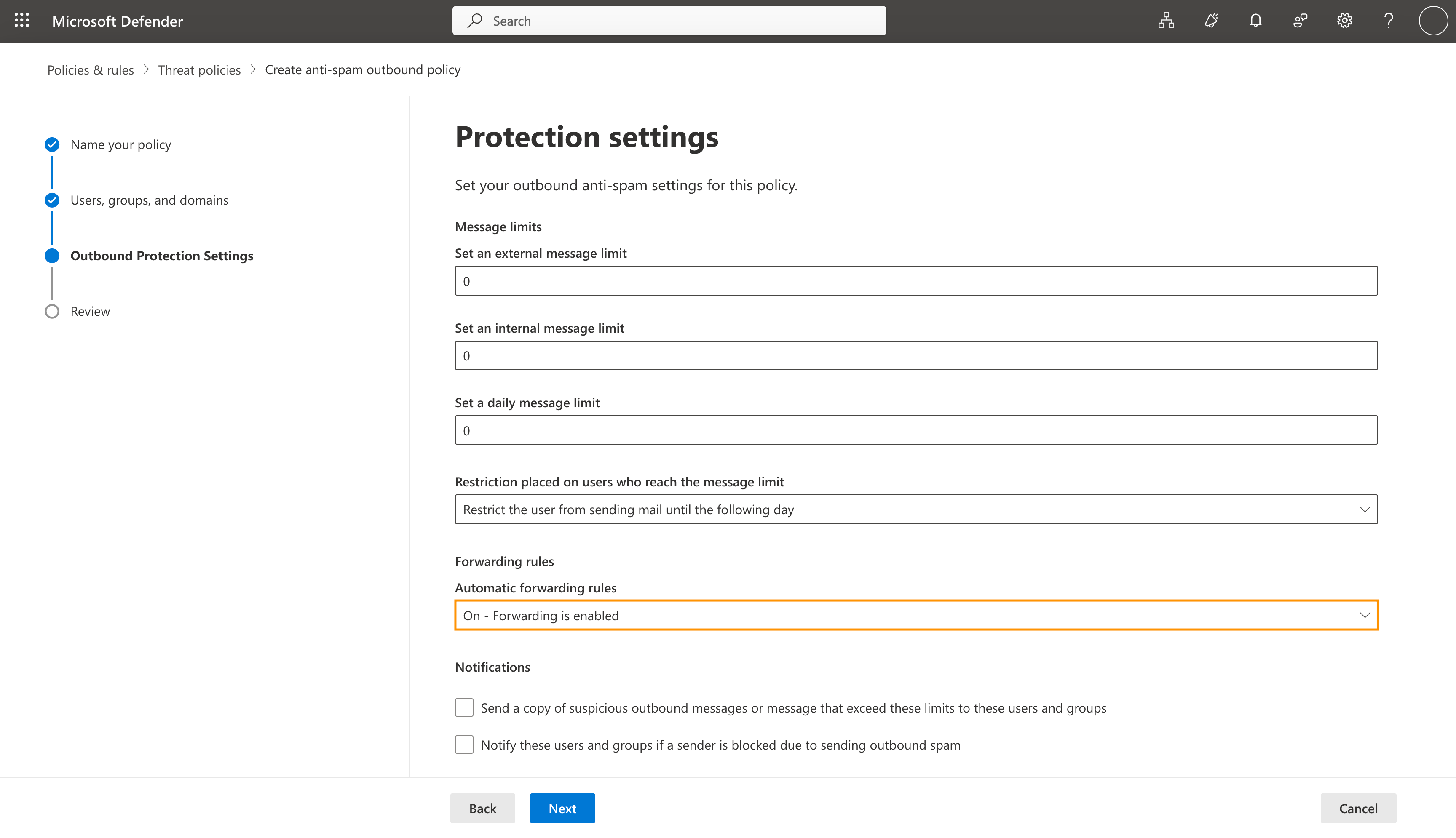
On the Protection settings page, find Forwarding rules and select On - Forwarding is enabled from the Automatic forwarding rules dropdown. Click Next.
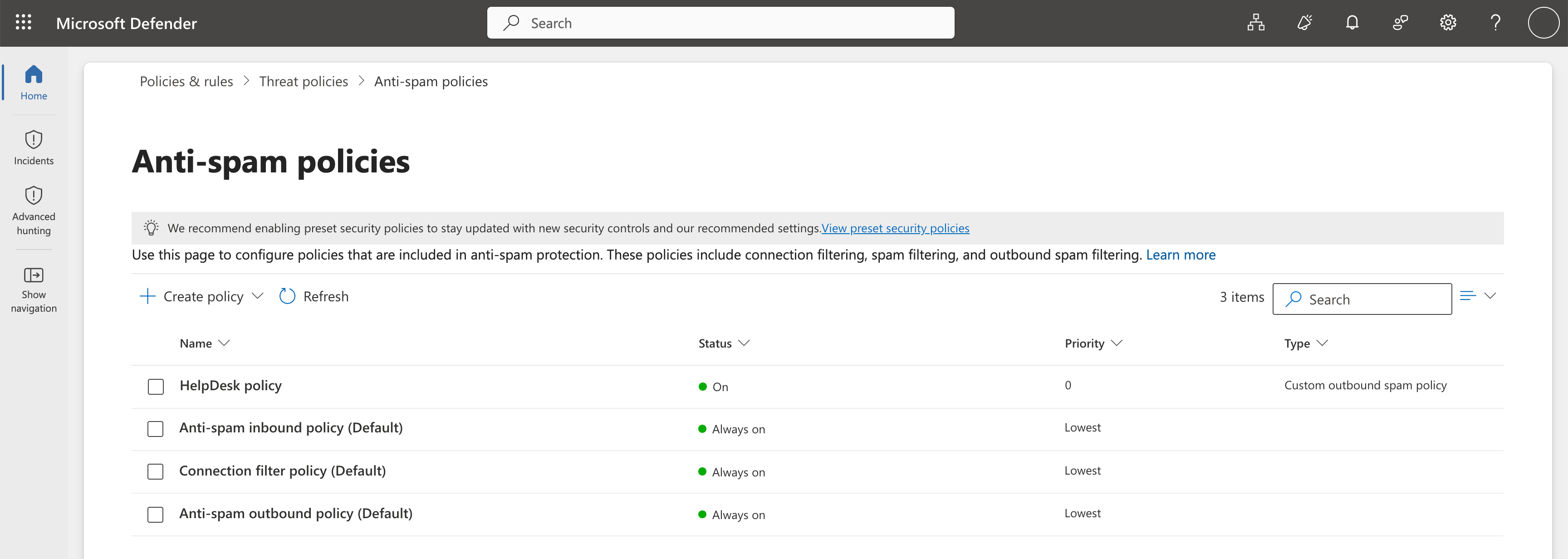
On the Review page, check the settings and click Create. When the policy has been created, click Done. The new policy appears in the Anti-spam policies list with status On.
Note
You may have other transport rules or spam policies in place at Microsoft 365 that block external forwarding in addition to the outbound spam filtering we’ve covered here. If automatic external forwarding is still blocked after adjusting these policies, you will want to reach out to your Microsoft 365 support for assistance in finding any further blocking that has been set up in your Microsoft 365 account.
Configure forwarding
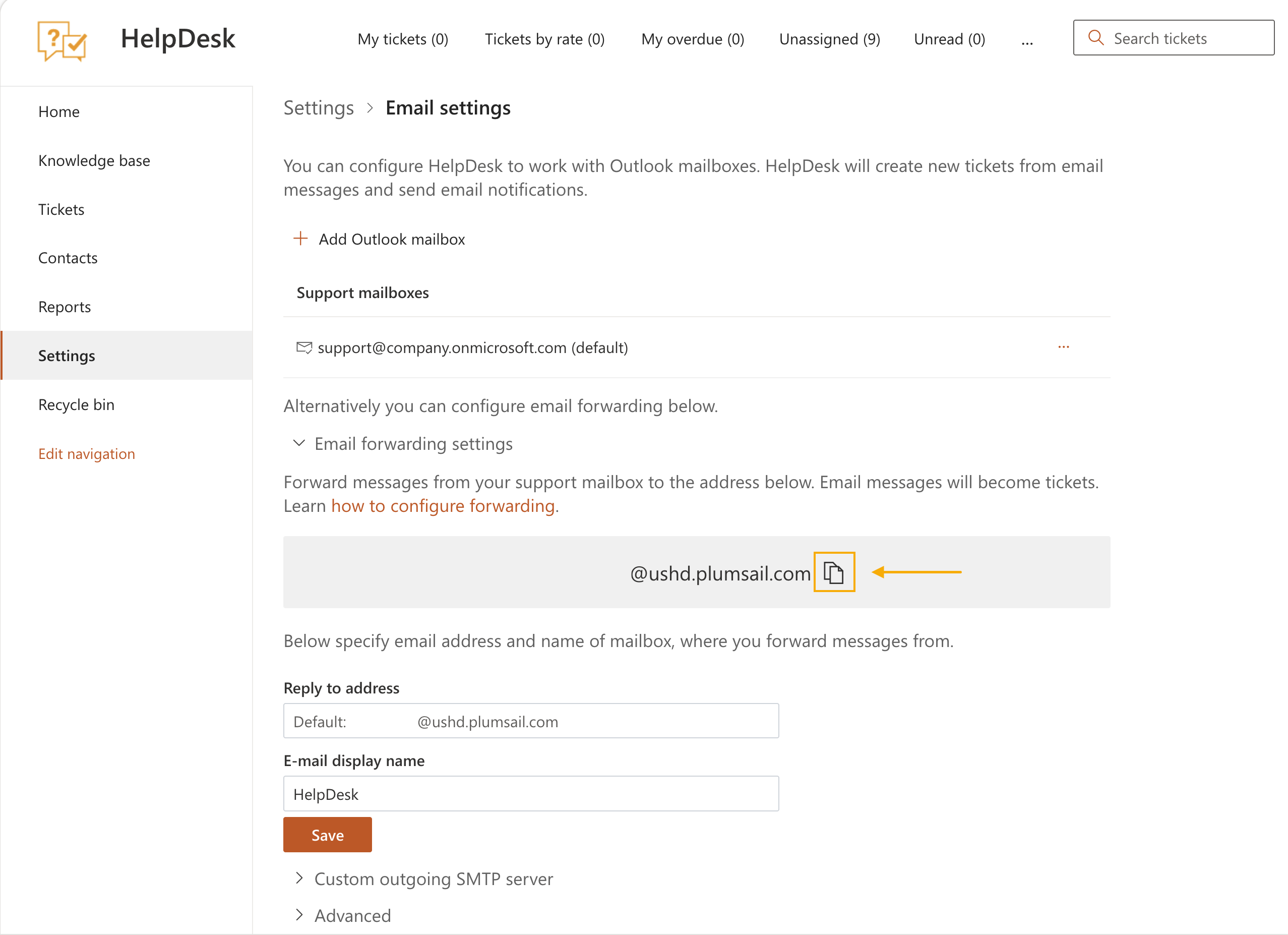
In HelpDesk, go to Settings -> Email settings and expand Email forwarding settings. Click the copy icon next to the auto-generated email address to copy the full address.
Then, use rules in Outlook Web App to automatically forward messages to another account. Use the copied HelpDesk address as the forwarding destination.